





Description
Download Stellar Data Recovery Professional – Secure, Unlimited File Recovery for Windows & macOS
Overview
Stellar Data Recovery Professional is a premium data‑recovery suite designed to bring back files that most users consider permanently lost. Whether you’re dealing with accidental deletion, drive corruption, bad sectors, or a completely unbootable system, this tool offers a robust set of utilities that can retrieve photos, videos, documents, emails, and even entire partitions. Unlike the free version, the Professional edition removes data caps, adds deep‑scan capabilities, and supports external drives, BitLocker‑encrypted volumes, and damaged media. The software’s intuitive interface makes complex recovery tasks feel simple, while advanced options such as Drive Monitor, disk cloning, and sector‑level imaging give power users the confidence to protect their data before a failure occurs. In short, Stellar Data Recovery Professional sets a high bar for reliability, speed, and user‑friendliness in the competitive data‑recovery market.
Key Features and Capabilities
- Unlimited Data Recovery: No size limits on the amount of data you can recover, unlike the free tier.
- Partition Recovery: Rebuild lost or deleted partitions on both internal and external drives.
- Quick Scan & Deep Scan: Fast initial scan for recently deleted files, with an intensive deep scan for severely corrupted media.
- Preview Mode: View thumbnails and partial file previews to confirm you’ve found the right files before restoring.
- External Drive Support: Seamlessly scan USB sticks, external HDDs/SSDs, and memory cards.
- Bad Sector Recovery & Disk Imaging: Create a sector‑by‑sector image of a failing drive to protect data during the recovery process.
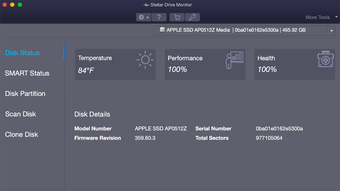
- Drive Monitor Add‑On: Real‑time health monitoring, temperature tracking, and SMART alerts to prevent future failures.
- BitLocker & Encrypted Drive Recovery: Access and recover files from drives protected by Microsoft BitLocker.
- Unbootable System Recovery: Retrieve files from systems that won’t start, using a bootable USB or CD.
- File Type Flexibility: Supports over 300 file formats, including RAW images, MOV videos, and PST email archives.
The combination of these features means you can tackle almost any data‑loss scenario with a single application, whether you’re a home user trying to rescue family photos or an IT professional managing enterprise‑level recovery tasks.
Installation, Usage & Compatibility
Step‑by‑Step Installation
- Visit the official Stellar website and click the Download button for the Professional edition.
- Run the installer (StellarDataRecoveryProfessionalSetup.exe for Windows or .dmg for macOS) and follow the on‑screen prompts.
- Enter your license key when prompted; the key is delivered via email after purchase.
- Choose the default installation folder or specify a custom path, then click Install.
- After installation, launch the application and allow any required permissions (e.g., full‑disk access on macOS).
How to Use the Software Effectively
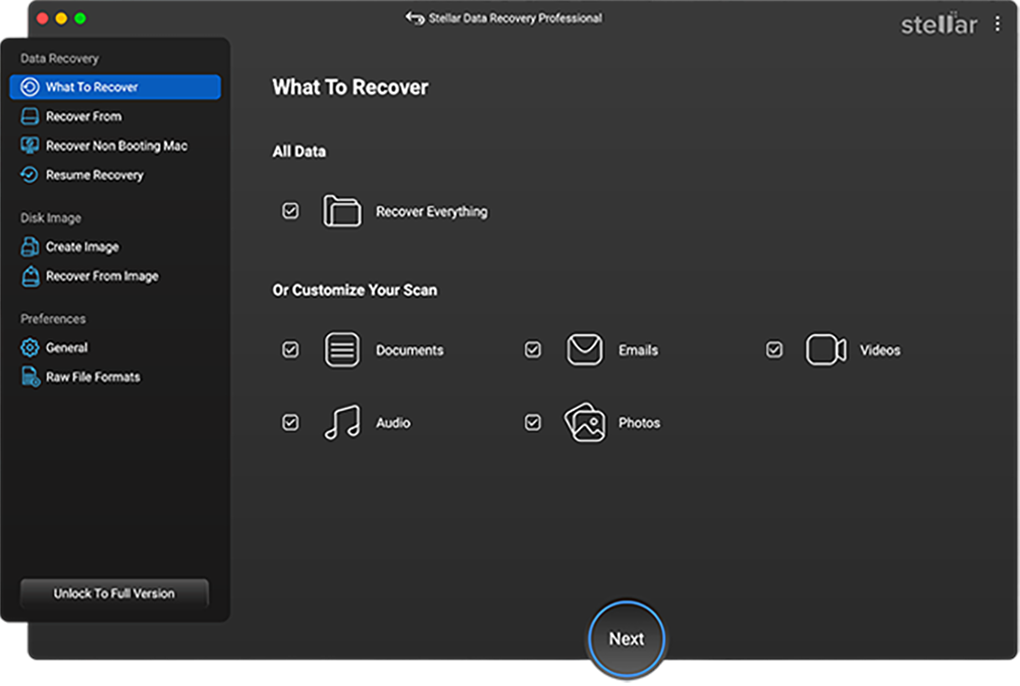
Once the program is open, you’ll see a clean dashboard with three main options: Quick Scan, Deep Scan, and Custom Scan. Select the drive or partition you wish to recover from, then choose the file types you’re interested in (photos, videos, documents, etc.). The Quick Scan will finish in minutes and display recoverable files in a tree‑list view. If the desired files aren’t listed, switch to Deep Scan, which thoroughly examines every sector, though it may take longer depending on drive size.
After scanning, use the preview pane to verify file integrity. Select the files you need and click Recover. Choose a safe destination—**never** recover to the same drive you’re scanning, as this can overwrite lost data. For external drives or damaged media, use the Disk Imaging feature to create a virtual copy first, then run the recovery on that image for added safety.
Supported Operating Systems
Stellar Data Recovery Professional is compatible with the following platforms:
- Windows 10, 11 (64‑bit)
- Windows 8.1, 8 (64‑bit)
- Windows 7 SP1 (64‑bit)
- macOS 12 Monterey, 13 Ventura, and later (64‑bit)
The software also works with external storage devices formatted in NTFS, FAT, exFAT, HFS+, and APFS, giving you flexibility across both Windows and macOS environments.
Pros, Cons & Frequently Asked Questions
Pros
- Unlimited data recovery eliminates frustrating size caps.
- Deep scan and partition recovery cover the most severe data‑loss cases.
- User‑friendly UI suitable for beginners and advanced users alike.
- Drive Monitor and disk imaging tools add preventive value.
- Supports encrypted (BitLocker) and unbootable drives.
Cons
- Price point is higher than some competing tools.
- Deep scans can be time‑consuming on very large drives.
- Preview mode does not support every file type (e.g., some proprietary formats).
FAQ
Can Stellar Data Recovery Professional recover data from a physically damaged drive?
Yes. The software can create a sector‑by‑sector image of a failing drive, allowing you to run recovery operations on the image instead of the damaged hardware, which reduces the risk of further data loss.
Is there a free trial available?
Stellar offers a 30‑day money‑back guarantee for the Professional edition. You can download a trial version that scans your drives, but actual recovery requires a purchased license.
Does the software work on SSDs with TRIM enabled?
Yes, Stellar can recover files from SSDs, but if TRIM has already overwritten the sectors, recovery chances decrease. It’s best to stop using the drive immediately and run a deep scan.
Can I recover files from a BitLocker‑encrypted drive without the password?
You need the BitLocker recovery key or password to unlock the drive first. Once unlocked, Stellar can scan and recover the files as usual.
How does Stellar handle privacy and security of recovered data?
All processing happens locally on your computer. Stellar does not upload your files to any server, ensuring that recovered data remains private and secure.
Stellar Data Recovery Professional delivers on its promise of unlimited, deep‑scan recovery while maintaining an easy‑to‑navigate interface. The added tools for disk health monitoring make it a forward‑thinking solution for both home users and IT professionals.
Conclusion – Why You Should Download Stellar Data Recovery Professional Today
If you’ve ever faced the panic of a missing photo, an important work document, or a corrupted system drive, Stellar Data Recovery Professional offers a comprehensive, secure, and user‑friendly answer. Its unlimited recovery limit, deep‑scan engine, and advanced features such as partition recovery, disk imaging, and drive health monitoring set it apart from free alternatives and many paid competitors. While the price is higher than basic tools, the value you gain—especially when dealing with critical data loss—justifies the investment.
Ready to reclaim your lost files? Download Stellar Data Recovery Professional now and take advantage of the 30‑day money‑back guarantee. Secure your data, protect your future, and restore peace of mind with a single click.
Guides & Tutorials for Stellar Data Recovery Professional
How to install Stellar Data Recovery Professional
- Click the Preview / Download button above.
- Once redirected, accept the terms and click Install.
- Wait for the Stellar Data Recovery Professional download to finish on your device.
How to use Stellar Data Recovery Professional
This software is primarily used for its core features described above. Open the app after installation to explore its capabilities.
User Reviews for Stellar Data Recovery Professional 0
No reviews found





.webp)